What Causes Keyboard Input Lag While Gaming and How to Fix Delay on PC or Laptop
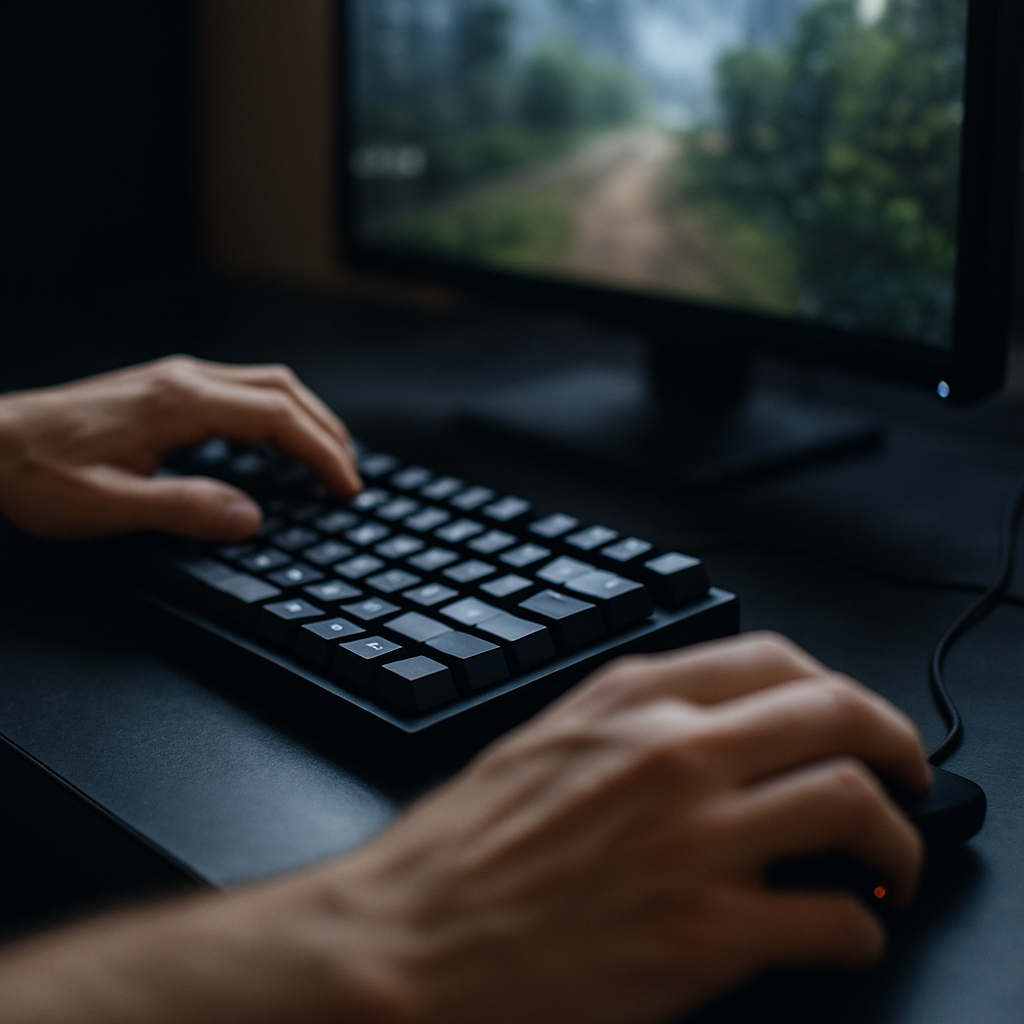
If you've ever experienced keyboard input lag while gaming on your PC or laptop, you know how frustrating even a slight delay can be. Whether you notice problems in popular titles like GTA 5, Minecraft, or online shooters, understanding what causes this lag, and how to resolve it, is essential for smooth and responsive gameplay. In this guide, you'll get actionable solutions for reducing lag, fixing keyboard delays, and improving your overall gaming setup starting from the most common causes to advanced fixes, all backed by authoritative sources like MelGeek and Intel.
Understanding Keyboard Input Delay in Gaming
Many gamers encounter keyboard input delay when playing competitive games or resource-intensive titles. This phenomenon refers to the time interval between pressing a key and seeing the action on your display. Lag can range from nearly imperceptible milliseconds to several seconds, sometimes making your gaming keyboard feel unresponsive in games like RDR2, Delta Force Online, or while using a touchpad or joystick.
The causes of this delay can be both hardware- and software-related. Sometimes simply testing your keyboard with a mouse tester or latency tool will reveal spikes in response time. It is common to see gamers report input lag issues with brands ranging from Keychron, Logitech, Corsair, and even Mac Magic keyboards in various online threads and Reddit forums.
It's important to pin down the source of the problem—whether it's your mechanical keyboard, wireless connection, or PC performance. By isolating the delay, you can more effectively address the specific factors at fault.
Common Causes of Input Lag on Keyboards
There are several reasons your gaming keyboard could suffer from input lag, including hardware bottlenecks, poor connections, or system overload. Here are the leading causes to consider:
- Outdated drivers for keyboards, graphics cards, or USB controllers can introduce serious input delays, especially on new Windows or Mac laptops.
- Wireless keyboards using Bluetooth may experience higher latency or ghosting due to interference from other devices or environmental obstacles.
- High system resource usage—such as during intensive PC gaming or multitasking—can limit how quickly your computer processes keyboard input. Ghosting and key rollover issues can also stem from overloaded hardware.
- Poor-quality USB cables, faulty key switches, or non-gaming-rated keyboards (particularly at low polling rates) are prone to additional delays during fast-paced titles like WOW or racing sims.
- Display latency, v-sync settings, and monitor refresh rates can further contribute to the perception of lag, as discussed by Intel's guide.
Critical Steps to Test and Diagnose Keyboard Lag
Start your troubleshooting with systematic testing. First, use a mouse tester or keyboard latency test tool to check the delay between pressing a key and seeing a response. Compare the delay across different USB ports and try switching between wireless and wired connections on mechanical keyboards to rule out connection-based problems.
Test your keyboard in various games and applications (such as Minecraft or a typing test) to determine whether the lag is consistent or limited to specific contexts like GTA 5 display settings. If possible, try your keyboard on another PC or laptop. For wireless keyboards, check for Bluetooth interference or switch to a reliable USB dongle if latency persists.
Look at gaming forums, Reddit, or the manufacturer support pages for known firmware or driver issues related to your model. Track when the lag happens—after long gaming sessions, when multiple devices are connected, or during specific in-game events—to help pinpoint potential triggers.
Finally, monitor your PC's CPU and memory usage using Task Manager or Activity Monitor (on a Mac) while gaming, as high usage can cause temporary input delays according to Microsoft support threads.
Fixes for Keyboard Input Lag in PC and Laptop Gaming
Once you have diagnosed the source, try these practical solutions to fix keyboard input delay:
- Update your keyboard drivers, USB chipset drivers, and graphics drivers to the latest versions; this often resolves compatibility and input issues.
- Switch from Bluetooth to a wired connection to instantly reduce latency, especially for esports and FPS gaming where every millisecond counts.
- Experiment with keyboard polling rates through manufacturer software to lower response times—gaming keyboards like those from Corsair, Keychron, or Logitech often allow customization. Reduce settings for rollover and ghosting when necessary.
- Turn off unneeded background applications (like browser tabs, streaming apps, and update managers) to free up system resources.
- Lower in-game graphics settings, disable v-sync, and increase your monitor refresh rate to minimize overall system input lag—find these tips detailed in Intel's recommendations.
- Where applicable, reset your keyboard firmware or update to the latest version as provided in the official support documentation for models such as MelGeek's MADE series.
- If you are on a laptop or Mac, switch power profiles for highest performance and disable system-level power saving modes that throttle process speed.
If these solutions do not help, consider testing another mechanical or magnetic gaming keyboard, as hardware limitations can sometimes only be resolved by upgrading.
Preventing Future Keyboard Response Problems
To minimize chances of input lag returning while gaming, develop these best practices:
- Regularly restart your PC and keep your operating system and game clients up to date for security, performance, and compatibility benefits.
- Perform periodic driver checks with tools from keyboard manufacturers or Windows Update to maintain peak responsiveness.
- Clean the keyboard to avoid debris interfering with switches, especially in mechanical gaming models, and use quality USB or connection cables.
- Monitor your system for overheating or excessive background tasks before launching demanding games or online titles.
- Set aside time to test new accessories, like switches, wrist rests, or cables, from reputable suppliers such as MelGeek, to ensure optimal performance and comfort during long sessions.
By applying these diagnostic methods and solutions and referencing resources like MelGeek's keyboard troubleshooting archive, you can keep your keyboard response sharp in gaming, whether on PC, laptop, or high-end mechanical setups.


Comments
Post a Comment