Android Setup Keeps Stopping: Fix Screen Rotation, Gyroscope, and Auto Rotate Issues
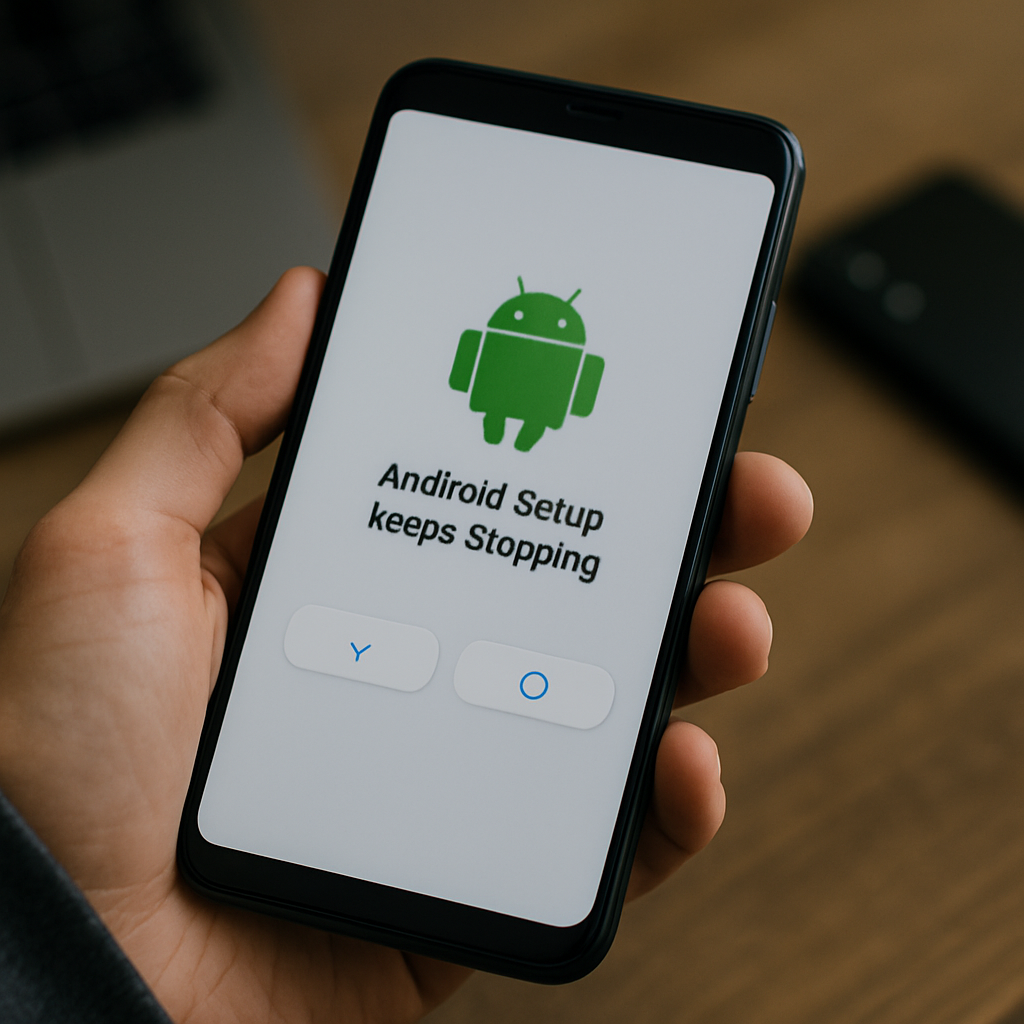
Troubleshooting Android Setup Keeps Stopping and Auto Rotate Failures
If you are experiencing repeated errors where Android setup keeps stopping and your Pixel screen refuses to rotate after updating to Android 16, you are not alone. Many users have reported problems with screen rotation, broken gyroscope functionality, and the auto rotate feature no longer working as expected on devices like the Pixel 9 Pro XL and Pixel 8 Pro. Below, we offer a detailed guide to solve these setup crashes and restore normal functionality to your screen rotation and related features, along with practical steps and references to authoritative sources.
Pinpointing the Problem: Why Auto Rotate and Gyroscope Stop Working
Immediately post-update, users notice symptoms such as apps that formerly auto rotated—like Google Photos—not responding when the device is turned. In-camera apps, landscape photos might be captured as if held in portrait, which suggests your phone's orientation sensors aren't registering movements correctly. Additional issues may include an unresponsive fingerprint scanner or auto-brightness glitches, as seen in multiple user reports on Google's official support forums (support thread).
Most reports confirm that a simple phone reboot can temporarily resolve setup stops and sensor malfunctions, but this fix does not hold permanently. This suggests a persistent bug—potentially involving software-hardware communication after the Android 16 update.
Combinations of these failures indicate that the problem is not limited to a single app but affects system-level orientation and Android setup procedures.
Feedback also highlights that multi-sensor disruptions sometimes accompany Android setup keeps stopping, causing unexpected interruptions in daily use. This makes fixing the underlying rotation issue even more urgent.
Essential Steps: Restore Your Pixel’s Screen Rotation and Stop Setup Crashes
To stop Android setup keeps stopping and fix screen rotation, begin with these logical steps:
- Restart your device. Although this offers a temporary fix, as many users (official forum evidence) confirm, it usually restores auto rotate and sensor services briefly.
- Update your system apps. Visit the Play Store and update the 'Android System WebView' and Google apps. Outdated components may conflict, especially post major Android updates.
- Check auto rotate settings. Go to Quick Settings; ensure 'Auto-rotate' is enabled (highlighted in blue). If you see 'Portrait', tap it to toggle rotation (see Lifewire).
These three prioritized steps will quickly rule out configuration problems, and a reboot is almost always necessary after changes to system features.
If auto rotate still fails, move to more in-depth troubleshooting as outlined below.
Advanced Fixes for Persistent Android Setup and Rotate Issues
When initial troubleshooting fails to prevent 'Android setup keeps stopping' crashes and broken auto rotate:
- Clear cache for system UI and Android Setup app. From Settings > Apps > See all apps, look for relevant entries and clear both cache and storage.
- Boot into Safe Mode. This will temporarily disable third-party apps which might conflict with sensors or the setup process. To enter Safe Mode, hold power, then tap and hold 'Power off' until 'Safe Mode' appears.
- Test device sensors. Use a hardware information app from Play Store to check if the gyroscope and accelerometer respond while the issue is present. If they fail in diagnostics, it confirms a system-level bug.
- Disable or adjust accessibility features temporarily. According to Lifewire, settings like TalkBack can interfere with rotation and setup processes.
By following these steps, you can narrow whether the issue lies in a corrupted setup component, a blocked sensor driver, or a third-party app misbehaving during the Android setup process.
Persist through each step. Often, multiple reboots and toggling features will gradually restore normal setup and screen behavior.
Permanent Solutions and When to Seek Official Support
If Android setup keeps stopping and auto rotate problems persist, consider these final measures:
Start by running a system software update check. Google may have recognized this as a widespread flaw and issued a patch for Pixel users, as suggested in user discussions on the official Pixel forum.
Should updates not arrive promptly or fail to help, back up important data and perform a factory reset. While drastic, this erases underlying software bugs and restores the original system layout, often eliminating setup crashes and sensor misbehavior.
If a factory reset and all other steps do not help, contact Google support directly. Prepare to explain your steps and reference the official support article for efficient escalation.
How to Prevent Future Android Setup and Rotation Failures
Once your auto rotate and Android setup are functioning, consider a few best practices:
- Delay major software updates on critical devices for a week or two until urgent bugs are discovered and patched.
- Review changelogs for known sensor or setup issues after updates, especially for Pixel or flagship Android phones.
- Keep your device's firmware and all system apps updated to minimize incompatibilities in system services like rotation or setup wizards.
- Join community forums or subscribe to update notifications so you are notified quickly about any emerging bugs or official fixes.
Through careful setup management and swift troubleshooting, you will ensure a smooth Android experience, minimize disruption from auto rotate failures, and get Android setup back on track after any update.


Comments
Post a Comment