Why Does My iPhone 15 Keep Going to the Lock Screen? Settings, Timeouts, and Quick Fixes
Understanding Unexpected Lock Screen Activation
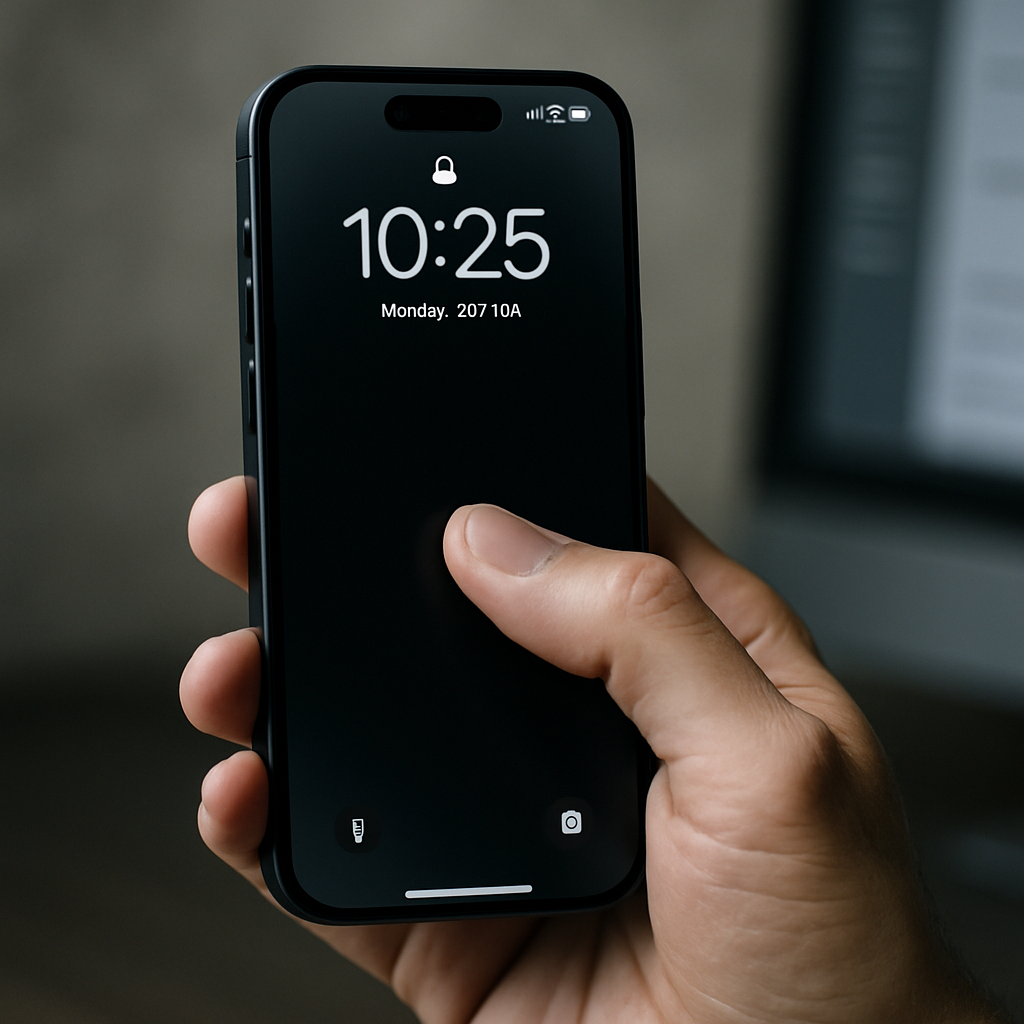
If your iPhone 15 keeps going to the lock screen unexpectedly, you are not alone. Many users report their device suddenly showing a blacked-out lock display or becoming unresponsive mid-use. The primary reason behind this issue tends to be incorrect settings, display timeouts, or recent iOS updates (as discussed by the Apple Community). The following guide explores the leading causes of this frustrating behavior and offers step-by-step solutions to get your iPhone 15 back to smooth operation, including fast resets and adjustments to your device's screen settings.
Review Auto-Lock and Screen Timeout Settings
The most common reason your iPhone 15's screen goes black or returns to the lock screen is the auto-lock setting. If auto-lock is set to a short interval, the display will dim and lock, especially when the device thinks it's idle. Navigate to Settings > Display & Brightness > Auto-Lock and set it to a longer period or "Never" for testing.
Be careful — using "Never" can leave your phone unlocked and vulnerable, so consider a balanced setting, such as 2-5 minutes. Short timeouts might be why your phone seemingly locks itself as soon as you pause during usage, whether you're reading messages, editing a font, or customizing your lock screen widgets.
Recent iOS updates can sometimes reset or change these preferences, so check after any update or sudden changes in lock screen timing. If settings seem to revert or not save, it may indicate a glitch that needs further troubleshooting.
Refer to user discussions about auto-lock changes after updates at Apple Support Communities for additional context.
Check for Peripheral or SIM Card Issues
Peripherals and SIM cards can sometimes cause your iPhone 15 Pro or Max to behave unpredictably. Third-party accessories, especially those connected through Lightning or USB-C, might make the device think it's being handled, prompting display activation or unplanned locks.
If the lock screen activates repeatedly, disconnect all hardware and test the device alone. According to video guidance from this YouTube tutorial, removing the SIM card can sometimes reset network-related bugs linked with random screen events.
Test your phone both with and without the SIM inserted. If removing it solves the lock issue, you may need a new card or further support from your network provider. Keep in mind that faulty or incompatible accessories can disrupt standard behavior, resulting in unexpected display shutdowns or freeze-ups.
Force Restart and Update Software
Many bugs that cause the iPhone 15 lock screen to freeze or become unavailable can be cleared by a force restart. Quickly press and release the volume up button, then the volume down button, and finally press and hold the side button until you see the Apple logo.
Force restarting resolves temporary glitches that may remain after a partial update or app crash. If your phone is stuck on a pink, green, or blank display, or displays a blurry or dimmed lock screen, a hard restart is the fastest way to address transient software faults.
- Press volume up, then down, then hold side button until the logo appears.
- If the device remains frozen or "unavailable," connect to a computer and use Finder or iTunes to restore.
- After rebooting, always check for new software patches under Settings > General > Software Update as fixes for lock screen bugs are released regularly.
Restarting after accessory or SIM changes can also clear up residual display and touch lag, slow response, and problems with hard or double-tap features associated with lock screen bugs.
Manage Display Brightness, Focus Modes, and Widgets
Sometimes, specific features or widgets—such as the clock, camera, or message edit boxes—cause your display to dim or act erratically after an iOS update. Custom widgets like Widgy, gallery items disappearing, or new fonts may not be completely compatible immediately after installation or upgrade.
Go to Settings > Display & Brightness to adjust brightness and disable True Tone or Night Shift if the screen remains too dark or appears grey and blurry. This can prevent the screen from dimming unnecessarily, particularly during long reading or typing sessions.
If you are using focus modes or do not disturb, verify these configurations. Focused modes may change how fast your screen dims or when the device automatically locks. Try temporarily turning off all focus and accessibility settings to see if the problem resolves.
Check if removing or reconfiguring widgets on the lock screen stops unwanted locking behavior. Some users have noted, on platforms such as Reddit, that editing or rearranging these widgets can immediately resolve lock anomalies.
If the display remains persistently zoomed in, sideways, or stuck in a matrix-like lag, a combination of force restart and widget management often provides relief.
Address Persistent Bugs: When Your Device Won't Unlock Normally
If after all adjustments the problem persists, it may indicate a rare but significant software or hardware problem—especially if the password screen remains unavailable, you notice lag and slow transitions, or screen elements stay blurry or pink.
Start by checking for the latest iOS updates, as these often include critical bug fixes for display and lock issues specific to the iPhone 15 family. Make sure background apps are closed and storage is not completely full, as these conditions slow down response times and can lock the device if resources become limited.
Contact Apple Support if your phone repeatedly gets stuck after restarts, and document which apps or settings seem to trigger the issue. In rare cases, a full device reset or professional repair may be necessary.
By systematically reviewing each of these troubleshooting steps, you can successfully resolve most issues causing your iPhone 15 to frequently lock or show an unavailable screen.


Comments
Post a Comment