What to Do When Your iPhone Won't Charge on Wireless Charger or Charging Pad
Understanding Why Your iPhone Won't Charge Wirelessly: Immediate Steps to Try
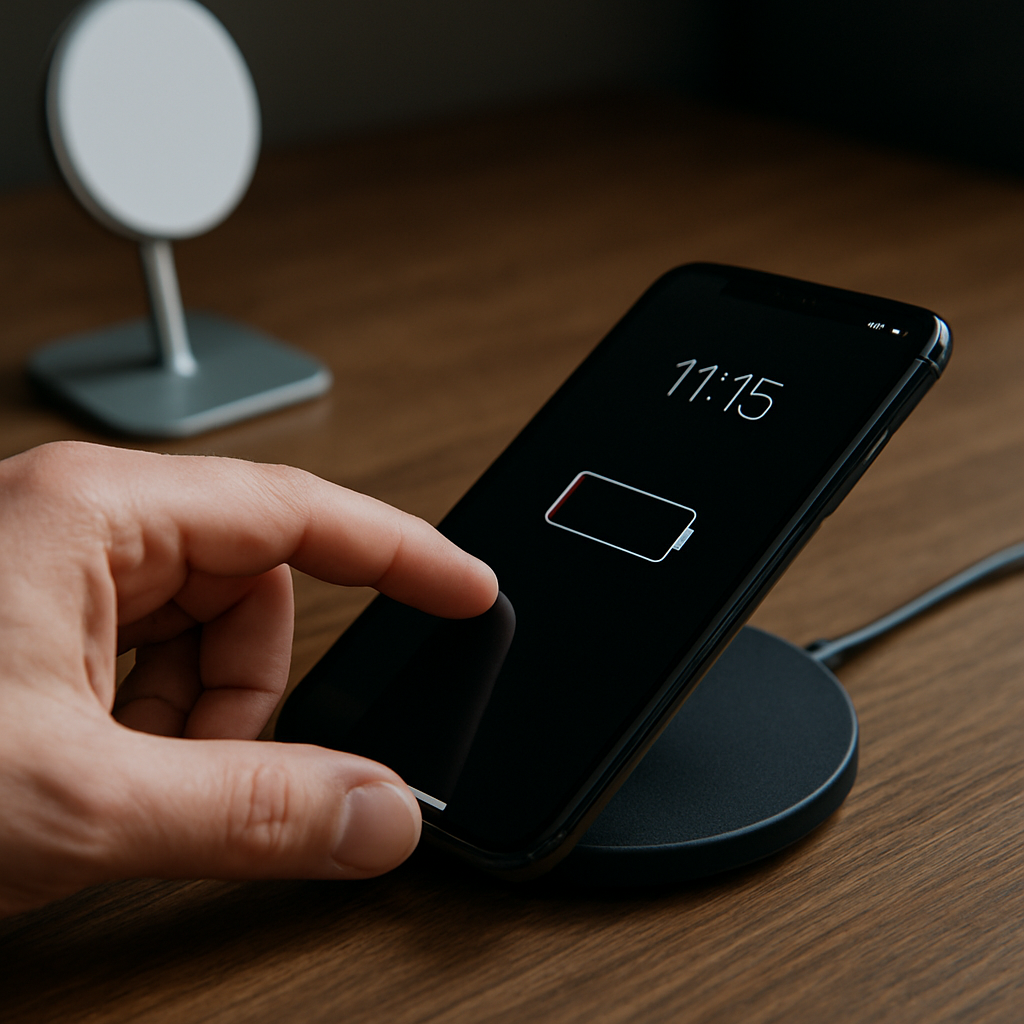
When your iPhone won't charge on a wireless charger or charging pad, it can disrupt your day—especially if your phone has a dead battery or refuses to turn on even when plugged in. The most common reasons include misalignment, a thick or magnetic case, debris on the charging pad, or issues with the charging pad itself. Before you panic, know that many of these problems are simple to fix and don't require a trip to the service center. Start by removing your case and trying a different, Qi-certified wireless charger to see if your phone responds. For a full explanation of common causes and step-by-step fixes, Anker's official troubleshooting guide provides up-to-date help tailored to iPhone XR, iPhone 8, SE, and other models from the 12 to 15 series.
Check iPhone and Charger Alignment for Best Results with XR, 8, SE, and More
Centering your iPhone on the charging coil is essential for wireless power transfer. Even slight misplacement can prevent charging, especially for iPhones like the XR, 8, and newer models that depend on precise magnetic alignment. Always ensure the back of your phone is flat and steady against the pad or MagSafe accessory.
If your iPhone doesn't charge, lift and reposition it—listen for a chime or look for the charging icon. Trying a different angle or side of the charging pad may also help. If the issue continues, try using another wireless pad compatible with your iPhone model.
Some aftermarket pads or non-certified chargers struggle to recognize iPhone 12, 14, or 15 series devices. Using verified, recommended chargers significantly boosts compatibility and charging consistency.
- Always use MFi-certified cords and pads for reliable charging.
- If available, use the original cable and USB power adapter they shipped with your phone.
Phone Cases and Charging: What Blocks Wireless Charging for iPhone 11, 12, 13, and 15
Thick, metal, or magnetic cases are one of the top reasons iPhones like the 11, 12, and 13 series will not charge wirelessly. These materials either block or disturb the electromagnetic field needed for charging. Remove the case entirely and try again. If the iPhone starts charging, switch to a thinner or wireless-charging-compatible cover.
For MagSafe charging, only use cases labeled 'MagSafe compatible.' Even with thin silicone covers, magnets or metal ring accessories attached to the back can disrupt charging and may even damage the charger.
In extreme cases, even stickers or attached accessories, such as PopSockets or card holders, can interfere. Regularly inspect your phone's back and the pad for any stuck items or adhesive residues and clean them off to ensure smooth wireless charging.
To avoid these issues, select Apple-certified cases or brands with clear Qi or MagSafe support on their packaging.
Software and Firmware Issues: iOS Glitches Affecting Wireless Charging on Older and Newer iPhones
Sometimes, software bugs in iOS can block charging on wireless pads, even for newer models like the iPhone 15. Symptoms include the phone briefly charging and then stopping, or refusing to charge until rebooted. If you experience these errors, the first step is to restart your iPhone.
Apple recommends updating to the latest iOS version as outdated software frequently causes charging glitches. To do this, go to Settings > General > Software Update and download any available updates. Afterward, power cycle both your iPhone and wireless charger.
If your device still won't charge, try a forced restart: press Volume Up, then Volume Down, then hold the Power (Side) button until the Apple logo appears. This can clear temporary software faults impacting battery and charging functions, as discussed in Apple Community forums (source).
Dealing with Overheating, Battery Issues, and Pad Problems on Your iPhone 8, 3GS, SE, and More
Wireless charging will pause if your iPhone becomes too hot as a protective measure. If you notice your phone is warm while charging, remove it from the pad and let it cool down for a few minutes before trying again. Charging in a cool environment and off soft surfaces helps maintain safe temperatures for models like the iPhone 8, SE, and even legacy devices like the 3GS.
Physical damage to your iPhone's back glass or charging coil can also disrupt wireless power. Inspect the back for cracks, warping, or dents, especially after drops. If there's visible damage and your phone won't charge on multiple pads, a service assessment may be needed.
For severely dead batteries, plug your iPhone into a cable charger for 10–20 minutes before attempting wireless charging—sometimes deeply drained batteries need an initial boost from a wired source before accepting wireless power.
Charging pads themselves can also fail over time. Try using your pad with another device (like AirPods, Beats earbuds, or a power bank) to rule out pad malfunction. If it doesn't work with any device, it's time for a replacement.
Keep your pad and iPhone free from dust and dirt; always check both surfaces and clean gently with a dry microfiber cloth before placing your phone down to ensure solid contact.
Choosing the Right Accessories and Keeping Your Phone Ready to Charge
Not all wireless charging pads and phone chargers are created equal. Always select Qi-certified pads and cables, and avoid generic or counterfeit chargers, especially for devices like the iPhone 12, 13, or 15. Consider brands known for quality—such as the Anker wireless pad (see their guide)—to maintain the best compatibility and safety for your iPhone.
Avoid stacking other electronics, such as airpods, gopro cameras, or power banks, on or near your charging pad. Electromagnetic interference can impact both phone charging efficiency and device safety. Keep screws, coins, or other metal objects away from the area as well.
If your iPhone charges wirelessly up to 98 percent but not to 100, that's normal—Apple limits charging to preserve battery lifespan. For issues holding past certain percentages, using the original USB or a certified USB-C cable to top up may help.
Maintaining up-to-date firmware, using recommended accessories, and keeping your iPhone and charging pad clean will help prevent most wireless charging issues for all recent iPhone models, from the iPhone XR and SE to the 15 Pro.
By following these troubleshooting steps, you can quickly resolve most wireless charging problems and keep your iPhone powered up with minimal hassle.


Comments
Post a Comment