What to Do When Your iPhone Camera Screen is Black but Still Takes Pictures on iOS 15 & 14
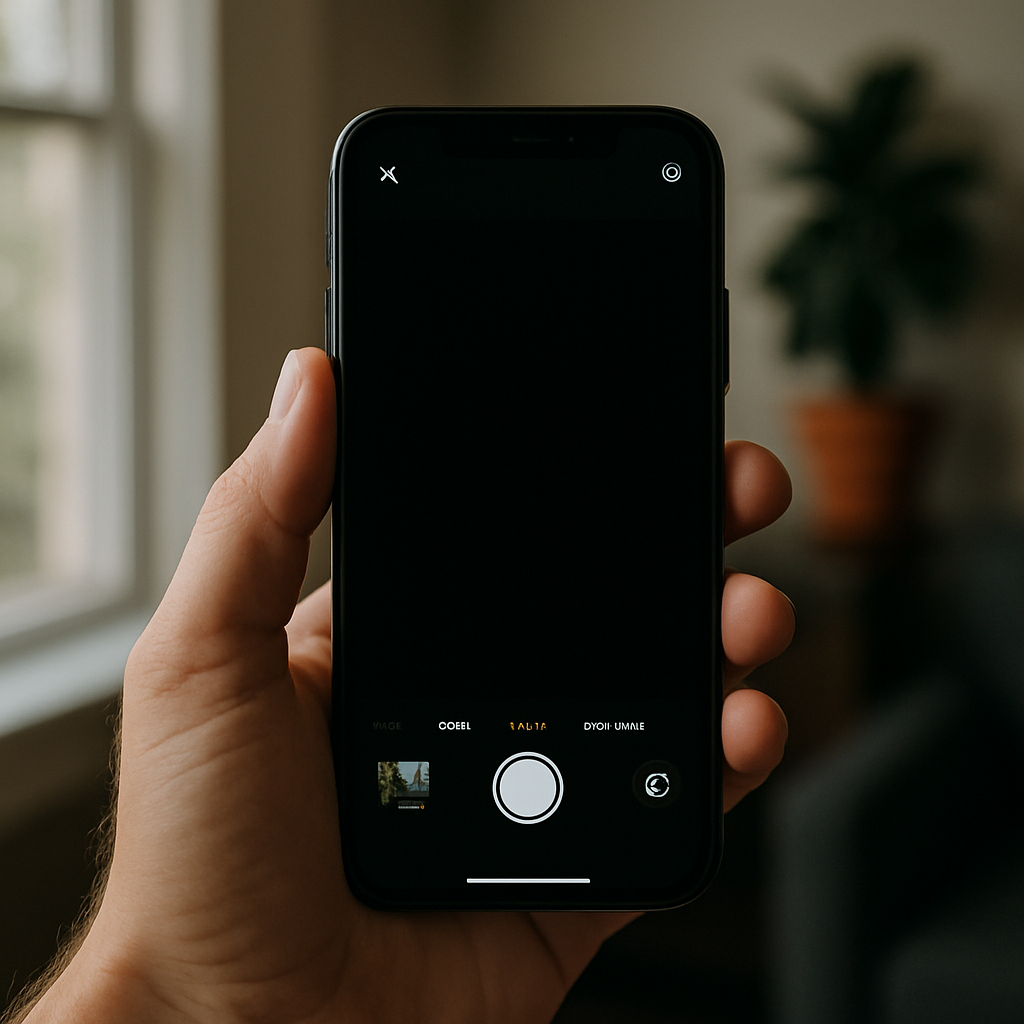
If your iPhone camera screen is black but you can still capture pictures, you're facing a surprisingly common problem affecting models like the iPhone 11, SE, 6 Plus, and even some units after updating to iOS 15 or 14. The issue can strike without warning, making the camera preview go dark, but letting you snap photos or record videos blindly. Below, you'll find real solutions and step-by-step troubleshooting tested by both Apple users and reputable sources to get your camera back in working order as quickly as possible.
Restart and Test the Camera on Different Modes
Begin with a simple restart, as this alone resolves black camera screen problems for many users across iPhone models including the SE, XR, and XS Max. Restarting resets minor glitches in the camera app or iOS system. To do this, hold the Power (Wake/Sleep) button until the power slider appears, turn your iPhone off, wait 30 seconds, then power it on again. After restarting, immediately try to use the Camera app and switch between front and back cameras.
If the black screen persists, tap on features like 1x and 0.5x zoom or switch between photo and video mode. Some users have found that switching modes can momentarily reactivate the preview, confirming it's a software, not a hardware, problem (source).
Testing modes like Portrait, Slo-mo, and Time-lapse can make a difference as well. If any of these modes display a live image, the standard photo view is likely affected by a software bug, especially after iOS 15 or 14 updates.
Check for Obstructions and Remove Accessories
Physical obstructions are a surprisingly frequent cause of black camera screens. Remove any protective cases, magnetic mounts, or stickers near the lens area. Some cases or screen protectors may inadvertently block sensors or cameras, triggering a blank or completely turned white preview. Clean the camera lens with a soft cloth to remove dust or fingerprints, especially if you see dark spots or blurry images.
Inspect your iPhone for any debris or damage around the camera area. If you've recently replaced screens or battery components on models like the iPhone 6 Plus or 12 mini, ensure all camera connections are secure and not pinched or covered.
Also, remove any accessory or magnetic add-on before testing the camera again. Sometimes magnets or metallic stickers interact with iPhone sensors, leaving your camera locked on a blank screen.
After removing potential blockages, try opening the Camera app and taking a photo or video. If the screen remains black, proceed to the next steps for deeper troubleshooting.
Update iOS and Reset Camera Settings
An outdated iOS version or buggy update can prompt unpredictable camera errors, including flickering, flashing, or a screen that just goes black after the most recent system update. Visit Settings > General > Software Update to check if there's a newer iOS version available for your device, such as iOS 18 or incremental fixes for iOS 15 and 14. Install updates and restart your phone to see if the problem is resolved.
If issues persist, try resetting all settings. Go to Settings > General > Reset > Reset All Settings. This won’t erase your data or photos, but it will return privacy, location, and network settings to default, often resolving black camera screen problems related to system glitches (trusted guide).
Remember to recheck camera performance after each update or reset. Some users report success with a force restart right after updating. This applies to iPhone 13, 12, and earlier models, especially after major iOS changes.
If your issue started after an iOS update and persists through resets, the problem may be embedded deeper in system files or could be linked to iOS bugs confirmed by the community.
Test with Third-Party Apps and Safe Mode
If your Camera app shows a black screen but apps like FaceTime, Snapchat, or Instagram show a live image, the issue is almost certainly app-specific. Try switching between these apps and compare the results. Sometimes the native iOS Camera app develops unique glitches, especially if another app was recently granted camera permissions.
To troubleshoot further, consider entering Safe Mode. Power off your device, then turn it on while holding the power and volume buttons simultaneously until the Apple logo appears. This temporarily disables third-party app interference, helping you check if an external app is causing the problem. Once in Safe Mode, test both front and back cameras and all shooting modes.
If the cameras operate normally in Safe Mode, a recently installed app or extension may be the source. Review apps installed just before the issue arose, especially video editing or photo enhancement tools.
Hardware Signals and When to Seek Repairs
Persistent black camera screens could indicate a deeper hardware fault, especially if the problem affects both front and back cameras, or if your device has experienced drops, water exposure, or repeated glitches in quick succession (such as spinning mode, sudden vibrations, or image flickering).
Look for physical indicators—like a camera that vibrates when attempting to launch, dead zones visible in screenshots, or a rear camera that never switches out of a blank or white screen. If these symptoms appear along with touch issues or the camera remains dark in all apps and after resets, professional repair is needed (detailed advice).
On older models like iPhone 4s, 5s, or 3GS, hardware component failure becomes more likely, especially after several years of service. If you suspect hardware, avoid repeated resets or forceful app closures, as these rarely resolve mechanical issues and may worsen them.
Bring your iPhone to a certified repair center if none of the steps above restore normal camera functions, especially if you notice persistent 'spot of death,' partial covers, or non-responsive lenses under the glass.
No matter the model or iOS version, following these steps addresses the most common reasons the camera shows a black screen but still captures images, helping you determine if it's a quick fix or time for expert service.


Comments
Post a Comment