How to Fix a White Bar on iPhone Screen After Drop with Black Marks or LCD Spots
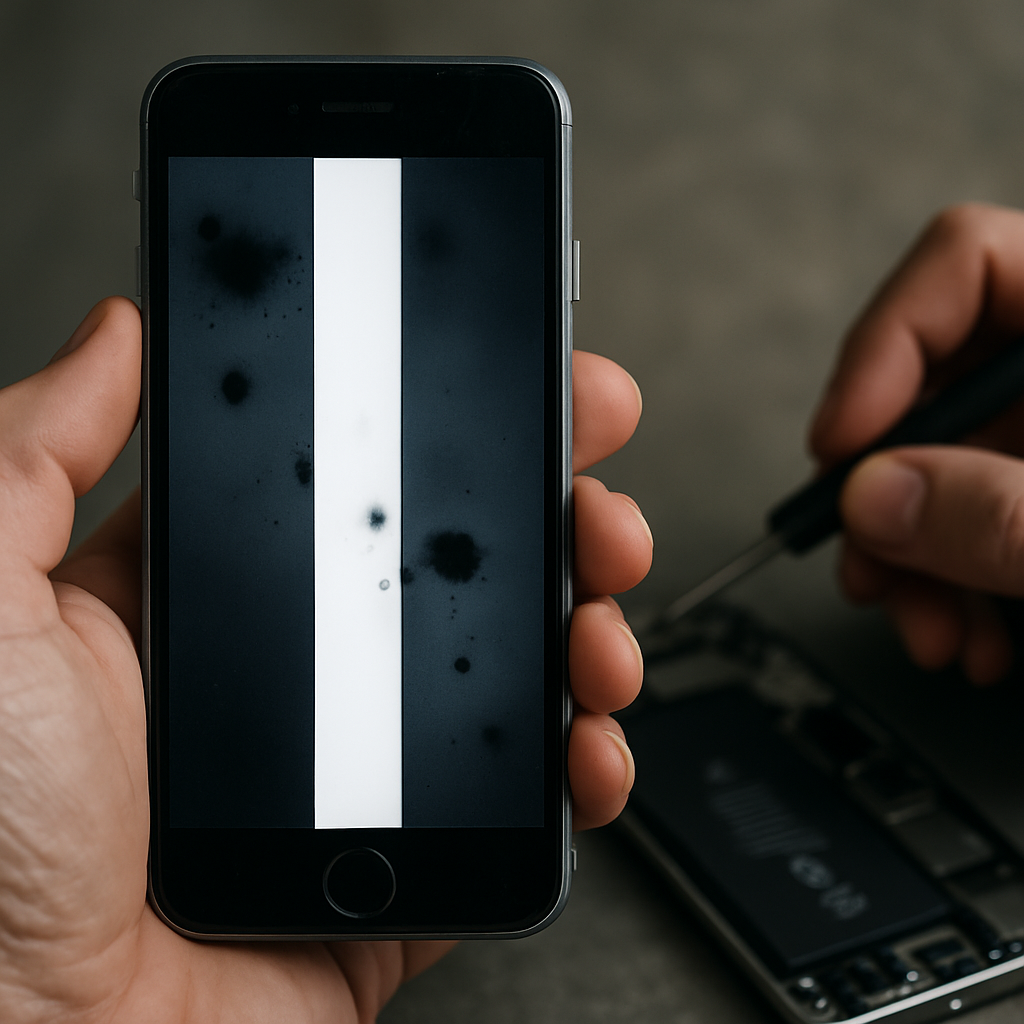
If you notice a persistent white bar on your iPhone screen after a drop—sometimes accompanied by black marks, LCD spots, or colored patches—the underlying cause is almost always hardware damage. While software glitches can cause temporary visual artifacts, a distinct white bar that remains after physical impact signals a problem with the display cable, connector, or the panel itself. Here’s what you need to know if your iPhone is glitching, showing small dots, or presenting irregular white and dark areas following a fall.
Understanding Why White Bars and Spots Appear After Impact
Physical trauma from dropping your iPhone can loosen or damage the internal connectors that deliver signals to your screen. This may result in a visible white bar, box, or even a section of dead pixels, distinct from the more global "white screen of death" (learn more here). Sometimes, black spots or colored patches also form, indicating bruising of the LCD or OLED display.
Unlike minor surface marks or scratches, these display abnormalities point to internal issues. If the screen displays only part of the regular iOS interface or flashes with strange patterns, the display assembly or motherboard connection may be at fault. Always back up your data promptly to avoid potential data loss as deterioration can be progressive.
In some cases, exposure to water or overheating after a drop increases the risk of long-term display faults. Even with water resistance ratings, iPhones may develop panel bleeds or permanent dots after real-world mishaps, as seals degrade.
Common Signs: LCD Dots, Lines, and Debug Artifacts
When your iPhone screen shows a white bar, box, or blue line after impact, you might also detect additional symptoms:
- Patches or Bleeding: Persistent bright or dark spots across the LCD, often at the top left or corners.
- Glitching and Random Artifacts: Small dots, jumping lines, or movement along the bar or screen edge hint at logic board or display cable trouble.
- Debug or Inspector-like Visuals: Odd boxes, overlays, or circles may briefly appear, indicating the display is failing to render the image correctly.
These issues commonly evolve over time. If you notice your screen flickering, showing a continuous white or blue bar after being dropped, it will rarely improve on its own. The affected area can increase in size, making prompt repair essential. Notably, features like lock screen, home button functionality, or gestures may continue working underneath the faulty area, suggesting the iPhone is still functional under the damaged layer.
For further insights and practical steps to gauge hardware faults, read this detailed overview of screen response failures post-drop.
Immediate Actions to Take After Seeing White Bars or Spots
As soon as you spot a white bar or black marks after a drop, take these immediate steps:
- Back up your iPhone: Use iCloud or connect to a computer to protect your data before the display fails further.
- Inspect for Physical Damage: Look for tiny impact points, dents, or gaps between screen and frame.
- Power Cycle the Device: Force restart your iPhone to rule out a minor software crash, but do not expect hardware issues to self-resolve.
- Avoid Additional Pressure: Pressing or tapping the affected area can worsen internal damage or spread LCD bleeding.
While some users attempt to gently press the edge of the screen to reseat a loose connector, this rarely solves persistent white bars and is best attempted only if you have experience with device repair. Continuously using a glitching or partially responsive display may eventually trigger more serious issues such as the screen going entirely white or losing touch sensitivity.
Remember, overheating or further drops can escalate the problem. If the device gets unusually hot or the display flickers, shut it down and avoid charging until it has cooled.
Repair Options: When to Seek Professional Service
If forced restarts and basic inspection do not clear the anomaly, plan for professional repair. Most display issues caused by drops require screen or LCD assembly replacement; resoldering internal connections or replacing a bruised panel is not a DIY fix for most users.
Many reputable repair centers can replace an iPhone display in under an hour. Always select a manufacturer-authorized service provider to ensure genuine replacement parts and to retain any remaining device warranty.
Temporary workarounds, such as using split screen, adjusting display settings, or employing accessibility features, will not address the underlying hardware fault. Ignore online myths that software testers can recover a distorted or white-bar display—once the LCD or connector is damaged, the only reliable fix is component replacement.
Prompt action is especially important if the white bar is accompanied by touch issues, square or circle overlays, or rapid onset of screen artifacts, as these all suggest a worsening hardware malfunction.
Preventing Future White Bars and Display Damage
Investing in a robust case with a screen-edge bumper can significantly reduce the odds of display faults after a drop. Such accessories disperse impact energy and protect vulnerable zones where LCD burning or panel jumps often begin.
Keep in mind that water resistance decreases after any drop or impact, so treat your phone as non-waterproof and avoid exposing it to pool, salt, or even tap water post-accident. Manufacturers' ratings do not account for real-world hazards like bent frames or depleted seals.
Finally, routinely inspect your iPhone for minute cracks, small dots, or a bright spot appearing after a fall. Addressing even minor post-drop signs early can save you from total display burnout and more costly repairs.
By understanding how to recognize and respond to a white bar on your iPhone screen after a drop, you are better positioned to protect your device, your data, and your peace of mind should issues with black marks, spots, or LCD glitches emerge.


Comments
Post a Comment