How To Fix Iphone Black Screen: Step-by-Step Guide for 17, 15, 14, and Pro Max Models
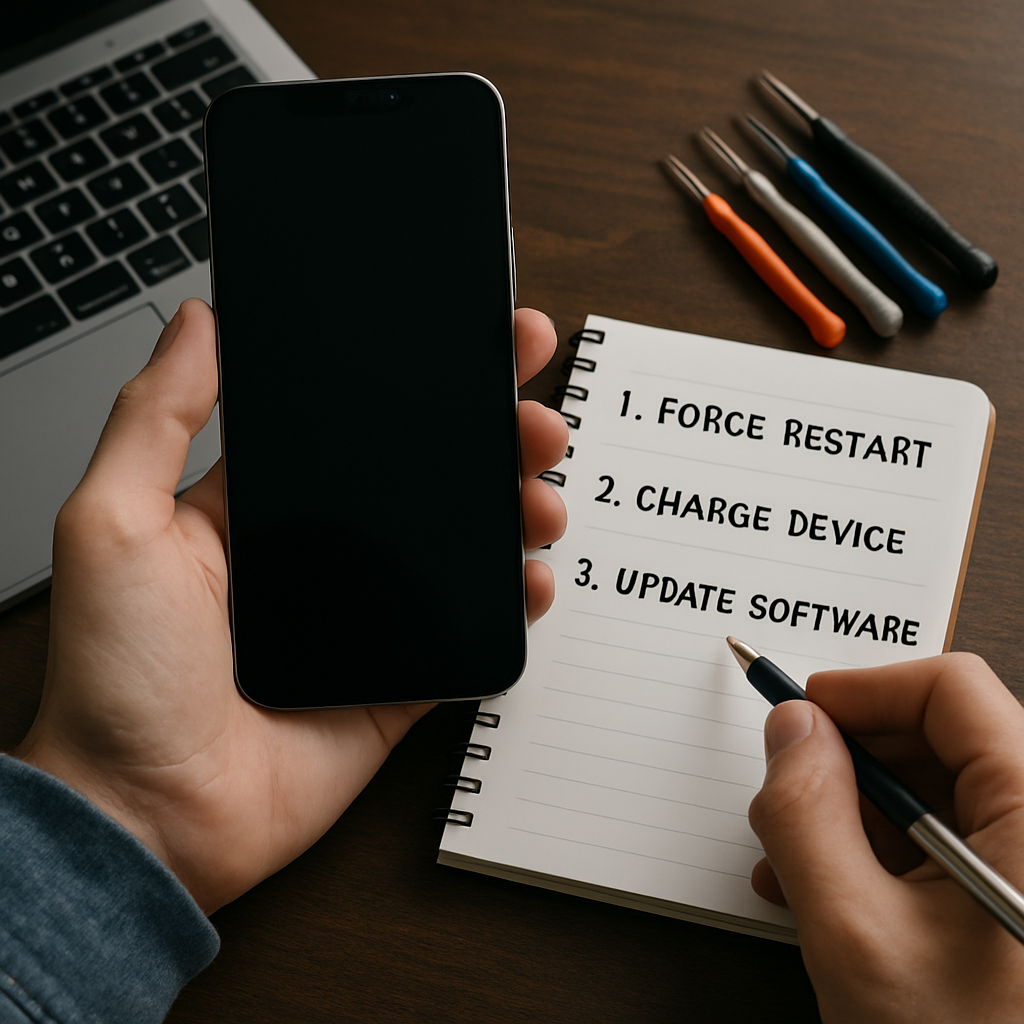
If your iPhone suddenly displays a black screen and won’t turn on, you are not alone. Whether you own the latest iPhone 17 or a previous model like the 15, 14, or Pro Max, this issue can stem from a variety of causes, including firmware crashes, drained battery, or even hardware malfunction. The good news is that most black screen problems can be resolved at home by following tried-and-tested methods before seeking advanced repair. Here’s how to address the iPhone black screen scenario and restore your device’s display quickly.
Common Reasons for Screen Failure in iPhone 17, 15, and 14
There are several reasons why your iPhone may show a black screen but still vibrate, ring, or appear to be working in the background. These range from minor glitches caused by a recent update to severe hardware issues. Firmware crashes are the most frequent culprit, especially following an iOS update or after installing a new background wallpaper. Battery depletion or charging issues might also contribute to the iPhone not turning on, even when connected to power.
The official Apple support page outlines troubleshooting based on device generation, and it is important to use steps matched to your specific model. Sometimes, the screen may remain black, but the device is actually active — this can happen due to accessibility settings, display malfunctions, or third-party apps that interfere with system processes.
If your iPhone 17, 15, or 14 Pro Max is unlocked and you have recently changed or downloaded an aesthetic wallpaper, consider whether this coincided with the issue. In rare cases, incompatibilities with system themes can contribute to the display not illuminating properly.
Restarting Face ID and Home Button Models When the Display Goes Dark
If your iPhone is stuck on a black screen, a forced restart is the most effective way to wake it up. On Face ID models (iPhone 17, 16, 15, 14, 13, and similar generations), quickly press and release the volume up button, followed by the volume down button, then press and hold the side button until the Apple logo appears. This sequence is designed to reset the hardware without risking data loss.
For models with a physical Home button, such as the iPhone 11 or earlier, hold both the Home and Side (or Top) buttons simultaneously for about 10 seconds until you see the Apple logo. A successful restart should bring the screen back to life and resolve minor iOS glitches.
Always use the correct method for your iPhone generation — newer models introduced changes in button functionality. If unsure, refer to Apple’s up-to-date step chart at Apple Support for device-specific instructions.
This approach is also effective for iPhones that are randomly vibrating or showing signs of life like notification sounds but remaining visually unresponsive.
Charging Methods and Battery Checks for Non-Responsive Displays
Sometimes the black screen issue simply means your iPhone battery is drained completely, even if it was working earlier. Plug your device into a compatible charger and wait at least 30 minutes to an hour before attempting any other fixes. While charging, be sure to use Apple-certified cables, especially for new models like the iPhone 17 series that utilize USB-C ports (Apple Buy iPhone).
If the low battery icon does not appear within an hour, try a different charging cable, adapter, or power outlet. Inspect the charging port and clean any debris that might block the connection. Sometimes, charging issues arise after a device update or prolonged use of a non-certified accessory.
If your phone vibrates when you connect it to power but does not show any display, the battery might be functional, but the problem could be with the screen itself or the internal connectors.
Persistent charging problems warrant a visit to a professional service or Apple Support, especially if your device will not turn on even after confirmed adequate charging time.
Physical signs to watch for include unusual warmth, a sudden shutdown after an iOS update, or your iPhone 17 failing to turn back on after it died.
What to Do After Update or When Your Phone Won’t Respond
If your iPhone black screen appeared after an iOS update, a stuck download, or while changing your unlocked device’s background wallpaper, the software may have encountered a critical error. In these cases, a forced restart or charging won’t always resolve the issue. Try connecting your iPhone to a computer and launching Finder or iTunes. If detected, you can attempt a software restore without erasing data.
Sometimes, third-party apps or intensive features enabled in the Pro Max and iPhone 16 series can cause the device to freeze on a black screen. Removing recent apps or reverting settings through recovery mode can resolve this.
If your phone is not turning on or the display remains off after an update, performing a device restore via Apple’s instructions is recommended. Detailed recovery steps and official recommendations are available at Apple’s official troubleshooting guide.
If you changed the wallpaper to a 4k or aesthetic image and the screen went black, boot your iPhone into safe mode or recovery mode if possible. Restore the previous working settings or adjust the display brightness and themes as necessary.
When to Seek Professional Service for Your iPhone
If you have followed all the troubleshooting steps and your iPhone 17, 15, or Pro Max still won’t turn back on, the black screen could signal a deeper hardware problem such as a faulty display, damaged logic board, or failed connector. Generally, if you notice that your device vibrates, makes sounds, or works when plugged in but shows no picture, there is a strong possibility the display or internal connections are damaged and require repair.
Visit an authorized Apple service provider or book a repair directly from Apple’s official store for an assessment. Do not attempt to open or repair the device yourself, as this can void your warranty or cause further issues.
For iPhones that have died and won’t power up (even after charging and restart attempts), seek out professional diagnostics right away. It is also wise to create routine backups to iCloud or iTunes to prevent data loss from unexpected black screens or shutdowns.
By understanding and systematically applying these troubleshooting techniques, you can often fix iPhone black screen issues on your own. If persistent, don’t wait to get expert help to have your device thoroughly examined and restored.


Comments
Post a Comment